
Networking and IT Support
How to Troubleshoot DNS Problems on Windows 11
A website will not open, but other sites load and Windows still shows a network connection. DNS, which resolves names such as microsoft.com to IP addresses, is one possible cause. Browser settings, an unreachable server, or a blocked connection can produce similar symptoms.
This guide helps you separate those possibilities using Windows PowerShell. You will record the symptoms, inspect the adapter configuration, compare DNS lookups, test a TCP connection, and choose a next step from the results. The examples demonstrate individual commands; they do not claim that a complete website outage was reproduced and repaired.
Prepare your troubleshooting session
Use a Windows 11 computer you are authorized to troubleshoot. The examples were captured on a Windows 11 Home virtual machine running version 26H2, OS build 26300.9457, with Windows PowerShell 5.1. Your addresses and output may differ.
Open Start, search for Windows PowerShell, and open that application. Windows Terminal is a terminal host and can open several different shells. If you use Terminal, select its Windows PowerShell profile rather than Command Prompt. Check the session with:
$PSVersionTable.PSVersionThe read-only checks below do not require changing network settings. The optional cache flush changes local state. For that step, open Windows PowerShell with Run as administrator only if you have permission to do so; otherwise, ask your IT team to perform it. Do not use administrator access as a substitute for authorization.
Keep the exact hostname of the failing site and a working comparison site in your notes. Use hostnames without https://, port numbers, or URL paths in the commands. If the device belongs to an employer or school, collect evidence before changing DNS, VPN, proxy, or security settings. Never send an internal company hostname to a public resolver simply to compare answers.
Step 1: Record the scope of the failure
Write down the exact browser error and when it appeared. Then try your comparison site in the same browser. If possible, check the failing site in another browser and on another authorized device using the same network.
Record these outcomes separately. “The internet is broken” is less useful than “the customer portal fails in Chrome on this laptop, while the comparison site loads.” The second description gives you something specific to retest after a change.
These observations narrow the investigation without proving a cause. A problem affecting one browser suggests checking that browser’s configuration. Several affected devices suggest looking for a shared dependency. If no sites work, start with the device’s connection and adapter settings before treating the problem as a DNS-only failure.
Avoid changing several settings during this first pass. You need an initial record against which to compare later results. If another technician takes over, that record should make clear what failed before any troubleshooting changes were made.
Step 2: Inspect the adapter configuration
Run the following command in Windows PowerShell:
ipconfig /allMicrosoft’s ipconfig reference (opens in a new tab) describes the configuration fields and cache operations used in this guide. Find the adapter relevant to the connection you are investigating and record its IP address, subnet mask, default gateway, and DNS servers.
If several adapters are listed, inspect their names and status with Get-NetAdapter (opens in a new tab):
Get-NetAdapterAn adapter marked Up is not automatically the one used for your destination. Wi-Fi, Ethernet, and virtual interfaces can be active together. Later, compare InterfaceAlias and SourceAddress from the TCP test with this configuration to identify the interface actually used.
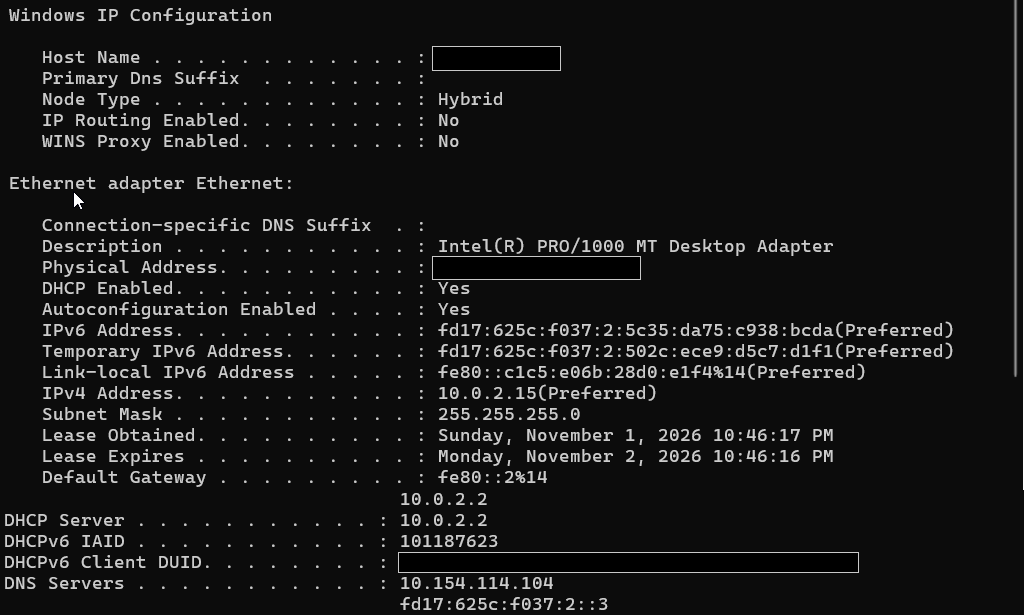
The recorded adapter used IPv4 address 10.0.2.15, subnet mask 255.255.255.0, and gateway 10.0.2.2. Its DNS servers included 10.154.114.104 and fd17:625c:f037:2::3. These are observations from this lab, not values to copy into your own network settings.
On an adapter configured to obtain an IPv4 address automatically, an address beginning with 169.254 can indicate that DHCP did not provide an address. Investigate that configuration and connection first. It does not establish that DNS is the only problem, or exclude a separate DNS fault.
The presence of a DNS-server address does not prove that the server answers queries. Likewise, an unexpected address needs investigation against your network’s approved configuration, not immediate replacement. Keep this output with your original symptom notes and test resolution next.
Step 3: Compare the DNS lookup results
Run Resolve-DnsName (opens in a new tab) for your comparison site, then for the failing hostname:
Resolve-DnsName microsoft.com
Resolve-DnsName failing-site.example
Replace failing-site.example with the hostname you are investigating. Keep the full result, including the error identifier if the command fails. Do not combine the outputs of two different names into a single result.
Interpret a successful lookup
The recorded lookup for microsoft.com returned these address records:
Name           Type TTL  Section IPAddress
----           ---- ---  ------- ---------
microsoft.com  AAAA 3599 Answer  2603:1061:14:5::1
microsoft.com  A    2820 Answer  150.171.109.2
An A record contains an IPv4 address; an AAAA record contains an IPv6 address. TTL describes how long a record can remain cached. Addresses and remaining TTL values can differ between runs, so compare the meaning of your result rather than expecting these exact values.
A successful result establishes that this lookup returned an address. It does not prove that the address is appropriate for the affected user or that the website will load. Cached information and local resolution sources also matter; the result alone is not proof that a DNS server was contacted successfully. Continue to the connection test in Step 4.
Interpret a name error
To demonstrate a lookup failure without disrupting a valid website, the lab queried a deliberately nonexistent name:
Resolve-DnsName this-domain-should-not-exist-987654.exampleThe result included DNS_ERROR_RCODE_NAME_ERROR, with the message that the DNS name does not exist.
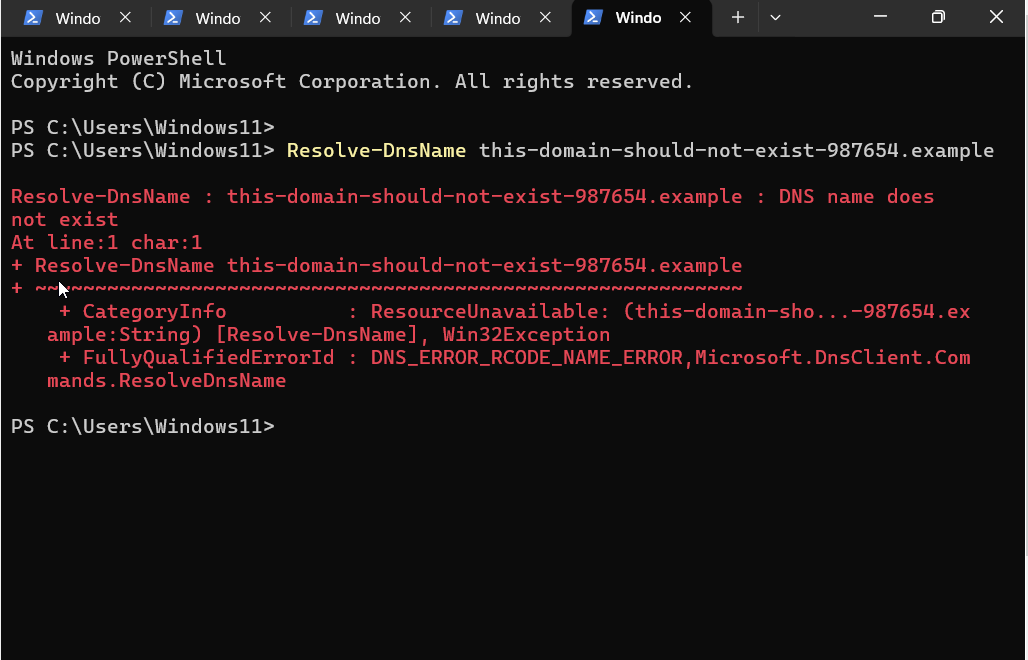
For a real incident, check spelling and the expected full hostname first. If the name is correct, investigate whether the device is using the appropriate resolution path. An internal name may depend on your organization’s network or VPN. A public resolver’s answer cannot establish whether that internal name exists in the organization’s DNS.
A negative answer can also be cached. Clearing that cached answer may be relevant after a record has been corrected, but it cannot create a missing record. Keep “the lookup returned a name error” separate from an unsupported conclusion such as “the DNS server is down.”
Interpret a timeout
A timeout means that the lookup did not complete with an answer within its time limit. Unlike a name error, it does not say that the requested name does not exist.
This outcome was not reproduced in the lab. Microsoft’s DNS client troubleshooting guidance (opens in a new tab) describes cases involving blocked DNS traffic and configuration problems. Its resolution timeout reference (opens in a new tab) explains retry and server-selection behavior.
Record the exact error, recheck the configured resolvers, and investigate the network path with the responsible administrator. Do not disable a firewall or security product merely to make the test pass. If your result differs from all three examples, preserve it rather than forcing it into a category.
Step 4: Test the TCP connection
Once a hostname resolves, test whether the computer can establish a TCP connection to the destination on port 443:
Test-NetConnection microsoft.com -Port 443Replace the hostname when testing the affected site. Microsoft’s Test-NetConnection reference (opens in a new tab) explains the connection diagnostics. The lab result included:
ComputerName     : microsoft.com
RemoteAddress    : 150.171.109.2
RemotePort       : 443
InterfaceAlias   : Ethernet
SourceAddress    : 10.0.2.15
TcpTestSucceeded : True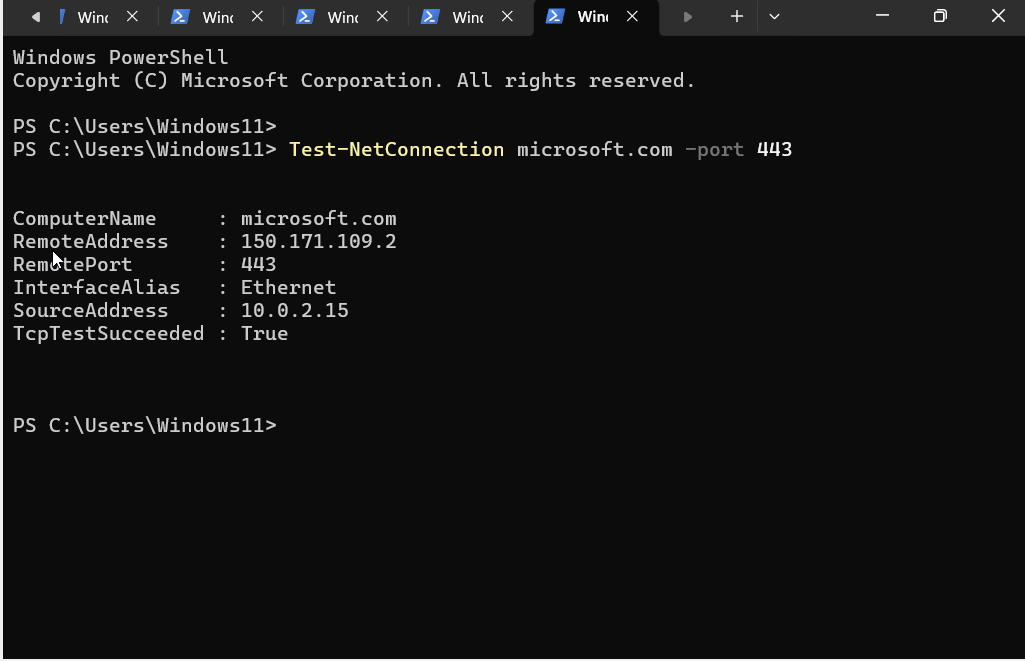
Read RemoteAddress, InterfaceAlias, and SourceAddress alongside TcpTestSucceeded. They identify which destination and local connection the result describes. This is why a successful test from another interface should not silently replace a failed test from the affected one.
True means that the TCP connection to that address and port succeeded. It does not test the complete browser task, TLS certificate validation, authentication, or the application’s response. False means that the connection was not established. Before investigating routing, firewall policy, or service availability, check whether the resolved destination is appropriate.
A failed ping is not equivalent to a failed TCP connection. Do not label a DNS failure solely from a ping result when the application depends on a different protocol or port.
Step 5: Choose an action supported by the evidence
Use the results to decide what to investigate next. The following table describes diagnostic decisions; it is not a record of reproduced outages.
| Observed result | Next investigation |
|---|---|
| Lookup succeeds and TCP succeeds | Compare browser behavior, DNS configuration, proxy settings, certificate warnings, and the site’s response. |
| Name error for the expected hostname | Confirm spelling, suffix, and the correct resolution path; contact the DNS or domain owner if necessary. |
| Lookup times out | Check configured resolvers and network reachability with the responsible administrator. |
| Lookup succeeds but TCP fails | Validate the resolved address, then investigate the route, firewall policy, and destination service. |
| Evidence indicates a stale local answer | Inspect the cache, consider an authorized cache flush, and repeat the same tests. |
If you suspect a stale local answer, inspect the cache before clearing it:
Get-DnsClientCacheGet-DnsClientCache (opens in a new tab) returns the local DNS client cache. Match the entry to the exact hostname under investigation. Similar-looking names can refer to different services, so their different IP addresses do not establish a stale record.
When clearing that cache is justified, use the authorized administrator session described earlier:
ipconfig /flushdnsThe lab capture shows Windows confirming that the DNS Resolver Cache was flushed. That confirms completion of the cache operation, not repair of a website failure. The command affects the local resolver cache; it does not repair a remote DNS server or a blocked network connection.
Make one change at a time and record it. Switching DNS providers without evidence can complicate the investigation and interfere with organization-specific resolution. On a managed device, leave resolver changes to the IT team.
Check browser DNS when results disagree
If Windows lookups and TCP tests succeed while the browser still fails, inspect the browser’s configuration. In Chrome, open Settings, then Privacy and security, then Security, and find Use secure DNS.
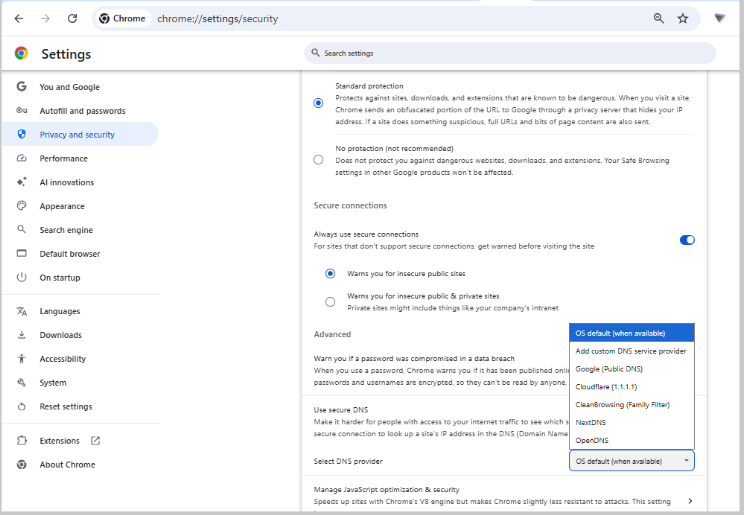
The capture shows OS default (when available). It records a selected setting, not proof that a particular request used encrypted DNS. Google’s Chrome security guidance (opens in a new tab) explains that automatic Secure DNS can fall back to unencrypted lookup; a custom provider behaves differently.
Record the browser version, selected setting, and whether a policy manages the device. Compare these observations with the Windows results. Do not bypass a certificate warning or disable security protections to reach the page. An unresolved discrepancy is useful evidence for the administrator, even if you cannot diagnose it fully from this workstation.
Step 6: Retest the original task
Repeat the lookup, the port test, and the browser action using the same affected hostname. Keep the network, VPN state, and browser consistent where possible. If any of them changes, note it so the comparison remains interpretable.
Record the command and outcome before and after each intervention. A successful lookup for microsoft.com cannot prove that a problem with www.microsoft.com was repaired. Similarly, a cache entry for a Microsoft service subdomain is not a before-result for a different hostname.
The examples here include successful resolution, a deliberate name error, successful TCP connectivity, and a completed cache flush. They do not establish a before-and-after repair. In your own incident, call the problem resolved only when the original task works again and the relevant checks support that conclusion. Record partial improvement honestly if some symptoms remain.
Prepare an escalation that another technician can use
If the problem persists, send the responsible team a concise record containing:
- Symptom: exact error, affected hostname, first occurrence, and the task that fails.
- Scope: comparison-site result, affected browsers and devices, and whether the problem depends on a particular network or VPN connection.
- Environment: Windows build, PowerShell and browser versions, connection type, and adapter name.
- Evidence: relevant command outputs with timestamps, resolver addresses, selected remote address, and TCP result.
- Changes: each authorized action, its order, and the result of repeating the original tests.
- Outcome: what still fails, what improved, and what remains unverified.
Review attachments before sharing. Keep credentials, personal account information, and unrelated internal configuration out of public tickets. Share internal network details only through your organization’s approved support channel.
A useful escalation allows the next technician to continue from your evidence. It should not require them to guess which command ran against which host or whether a successful operation actually changed the user’s experience.
Frequently asked questions
Does flushing DNS fix every connection problem?
No. A flush addresses cached resolution information. Repeating it without evidence does not diagnose an unreachable resolver, a blocked TCP connection, or an application failure. Return to the original result and choose the next investigation from it.
Why can DNS succeed while the website still fails?
Name resolution supplies an address. The browser still has to reach the service and complete the remaining steps required by that site. A successful TCP test narrows the problem further, but it does not complete those application-level checks.
Should I test an internal hostname with public DNS?
Use the resolution path approved by your organization. Sending an internal name elsewhere can disclose information and produce an answer that is irrelevant to the internal service. Ask the IT team which network or VPN connection the name requires.
What should I keep when I cannot identify the cause?
Keep the exact symptom, hostname, configuration, command output, and changes made. State what each result establishes and what it leaves uncertain. That is a useful troubleshooting outcome even when another team must complete the repair.